How do I setup my Webtrade Mail account on my computer?
Use the following help pages to setup a Webtrade POP3 email account on your computers email program, e.g. Outlook, if you have not already done so. Choose your email program from the list below, according to your computers operating system:
Text instructions: Outlook 2010
Text Instructions: Outlook Express
Mac Mail
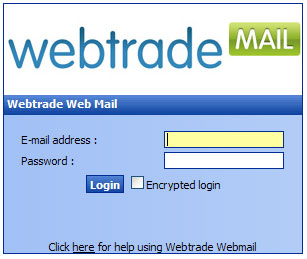
Logging on to Webmail

To check your messages on Webtrade Mail:
1. Go to: http://mail.<your-domain>/mail, (e.g. https://mail.webtrade.ie/mail/).
2. Log in with your username (your full email address, e.g. youradddress@webtrade.ie) and your normal email password.
3. Click “Login”.
4. If desired, click on  to make changes to your configuration.
5. Once logged in, also see the  Help link if you need further instructions, or see the Help FAQ’s on this page.
[Back to Top]
How do I setup Email on my iPhone?
From the Home screen, choose Settings.
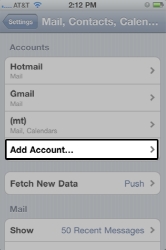
Next, tap Mail, Contacts, Calendars, see Figure 1:
In the Accounts section, tap Add Account..... See Figure 2:
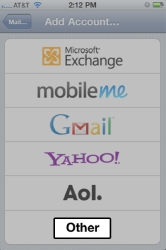
Choose your email account type. For setting up email to work with your Webtrade email account, choose Other. Figure 3 is shown below:
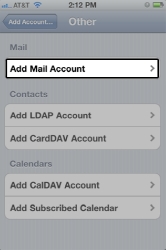
Select Add Mail Account under the Mail section, see Figure 4:
Enter your name and email address. Then tap Next, see Figure 5:
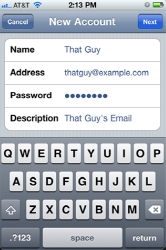
Make sure to enter your information, see Figure 6 below. The iPhone indicates these fields as optional but they are not. Enter your username as your full email address.
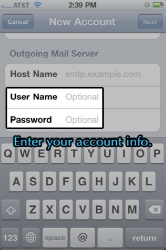
On the next screen, enter both Host Names as mail.yourwebsiteaddress.com account details.
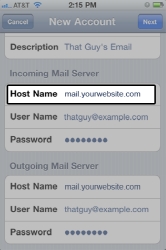
Incoming Mail Server (POP3)
- Host Name: mail.yourwebsiteaddress.com (Be sure to replace yourwebsiteaddress.com with your own website address.)
- User Name:thatguy@example.com (your full email address)
- Password: ********
Outgoing Mail Server (SMTP)
- Host Name: mail.yourwebsiteaddress.com (Be sure to replace yourwebsiteaddress.com with your own website address.)
- User Name:thatguy@example.com (your full email address)
- Password: ********
Tap Save to save the entered information. Your iPhone will then verify your account information.
To change your password on Webtrade Mail:
1. Go to: http://mail.<your-domain>/mail, (e.g. /mail/).
2. Log in with your username (your full email address, e.g. info@webtrade.ie) and your normal email password.
3. Click “Login”.
4. Click on to make changes to your configuration.
5. Click on "Accounts" on the left hand side, then Click "Modify"
6. Change your password to the new one, entering it twice to confirm.
7. Click "Save Changes" to set the new password.
[Back to Top]
a) When logged into the Webtrade Mail area, click on the settings button of the top tool bar.
b) Click on “Auto Responder” on the left hand side navigation.
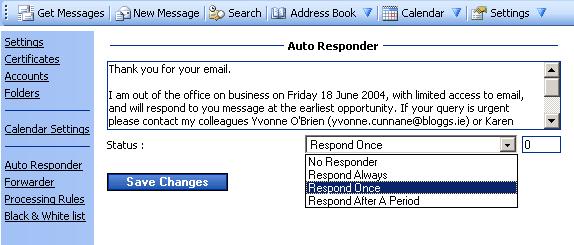
c) Type the text of your automated response message into the box provided and set the Status of the response:
– No responder: No response message will be sent.
– Respond Always: A response will be sent for each message received, even if the message has been received multiple times.
– Respond Once: Only respond once when multiple messages are received.
– Respond After A Period: Response will be sent after a set period of time. You set the number of minutes to delay the response in the box to the side.
d) Click Save Changes to save your preferences.
a) When logged into the Webtrade Mail area, click on the settings button of the top tool bar.
b) Click on “Auto Responder” on the left hand side navigation.
c) Either clear the auto response text and click Save Changes –OR- select “No Responder” and then click Save Changes.
Setting up your email account on Gmail
You can setup your email account to let Gmail collect and store your emails. Please note to complete this process you will have to have an existing gmail account already setup. If you do not, you can register a new account using the following link - www.gmail.com
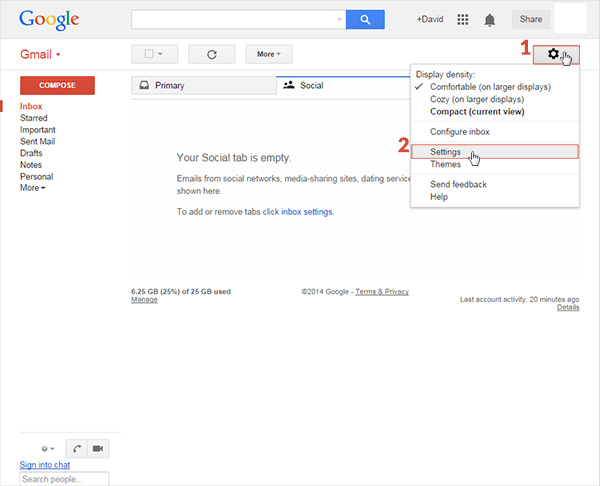
Step 1.
a) Log into your Gmail account
b) Click the options button on the top right hand corner of the page and next click settings
Step 2
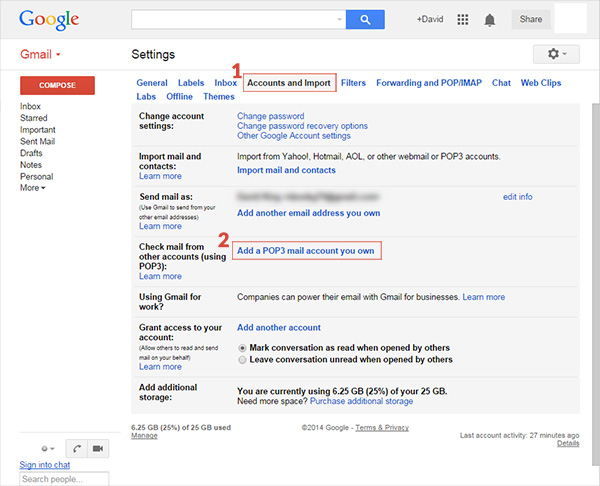
a) On the top row of buttons, click 'Account and Import'
b) Next click 'Add a POP3 mail account you own'
Step 3
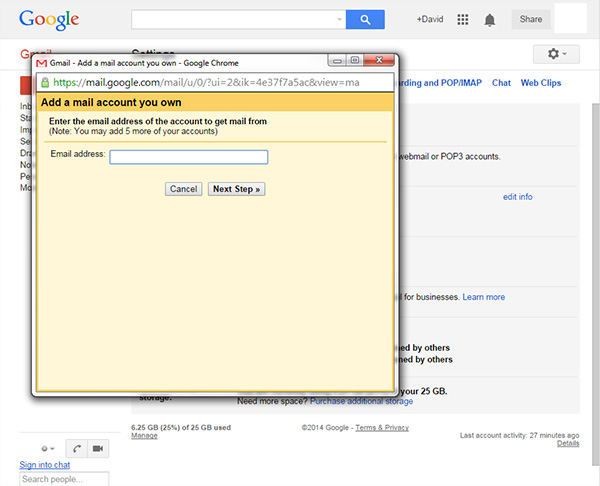
a) Enter the email address you want to setup within Gmail and click 'Next Step'
Step 4
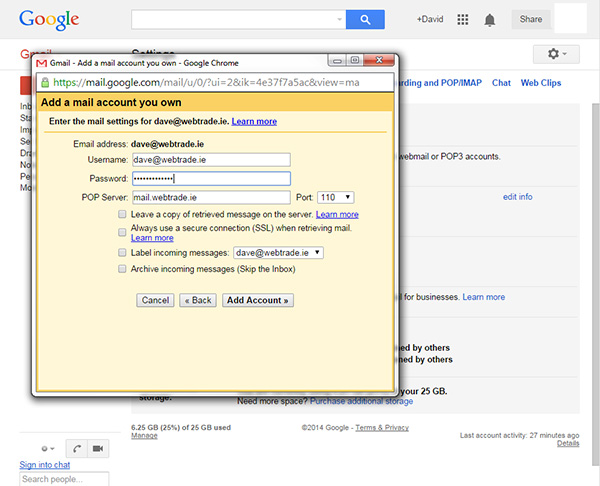
a) Fill in your account username, this is your full email address
b) Fill in your account password, this will be saved with Gmail
c) Fill in your POP Server address, this will be mail.YOURDOMAIN.com/ie (where yourdomain.com/ie is your website address)
d) Click 'Add Account'
[Back to Top]
[Back to Top]
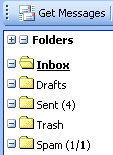
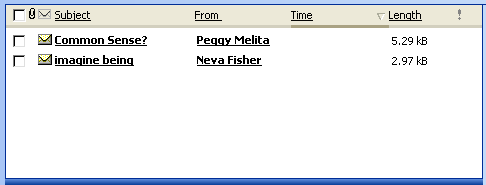
Click on the Subject of any message and a Preview of that message will appear below the Message List.
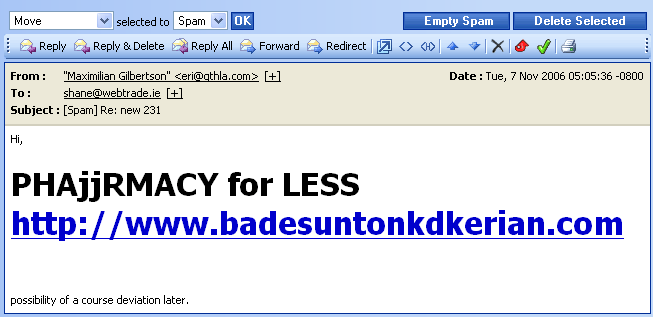
From the preview, you can decide if you would like either the address, or subject of this message specified in your spam filtering; referred to as the Black & White List.
- The Black List is a list of parameters which you specify for messages to be rejected. Rejected messages will automatically be removed from your mailbox.
- The White List is the list of parameters which you identify for acceptable messages. Accepted messages will be protected from being identified as spam.
Click on the accept icon or reject icon:
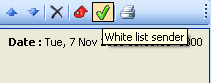
you will be asked to confirm...
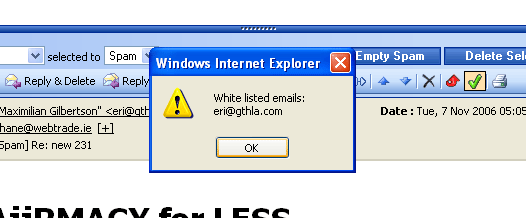
Just click on Ok to save the change.
Note: the message will automatically be moved to your inbox.
You will only need to move the accepted message(s) once. The White List will prevent future accepted messages from being put in the Spam folder again.
[Back to Top]
Manually Updating the Black & White List
Click on the button, then click on the link.
First of all, it is recommended that you leave the Black & White List enabled by leaving that specification checked at the top.
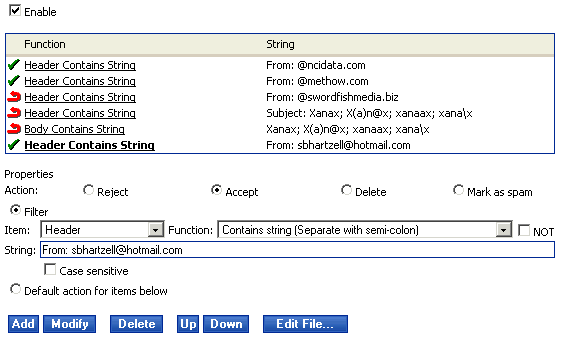
To modify any of the rules, click on the function that corresponds to the string of the rule you want to modify, e.g. "Sender Contains String."
Notice that Up and Down buttons now appear under the properties of the rule. This means you can move the rule up in the hierarchy if it needs to be executed before another rule. In this case it's been specified that all message from “sbhartzell@hotmail.com” be accepted, but all other messages from hotmail.com addresses be rejected. If another rule containing only the “@hotmail.com” string were above the one containing the “sbhartzell@hotmail.com” string, then the messages from sbhartzell@hotmail.com would be rejected along with all the others.
Once you have modified the properties, click on Save Changes to update the rule.
[Back to Top]
Why should I login to Webtrade Mail online?
Normally all of your email is downloaded into Outlook on your PC. Outlook effectively goes to the Webtrade Mail server and collects all items from your email Inbox. This will continue to be the case.
The only reasons you may wish to access the Webtrade Mail server online, is if:
a) You are not at your PC (but have internet access) and would like to collect your email.
b) You wish to ensure that no valid email is being collected in the online spam folder.
c) You wish to allow or block people from sending you email (i.e. manage your black and white lists).
[Back to Top]
How long will my email remain in the spam folder?
Messages are automatically erased from the Spam folder after 30 days, so you'll want to review your Spam folder often to be sure that messages you DO want to receive haven't been categorized as spam.
If you find valid emails in the spam folder then add them to your white list if required, and move them to your Inbox for download as normal.
[Back to Top]
Does Webtrade backup my email?
Please note: Webtrade is not responsible for backup of personal email/data. All email should be removed from the Webtrade email server by downloading to your email client.
[Back to Top]